Update to Teams & Clients
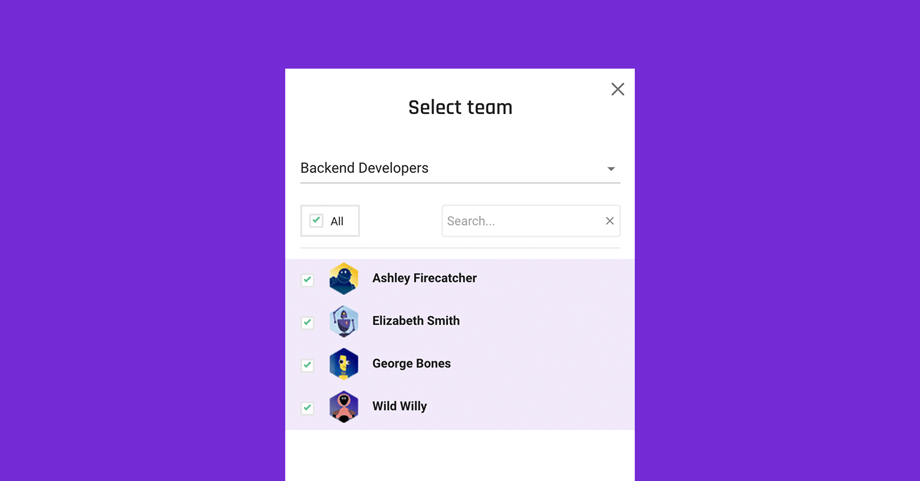
Today, we're launching an improvement to Teams and Clients. We've made it more clear that Teams and Clients are separate by also keeping the tabs separate in your Projects and in Admin Settings. Client Users now belong to Clients - not Team members as before. Also, now you're able to add notes to a client on the Client Profile shown in Admin Settings and on each project the Client is linked to.
At the same time, we made it possible to create Teams within your organization, i.e., group team members together into smaller teams. Those teams can easily be assigned to a project in one-go, and are also a great way to generate reports based on a specific team, or filter your view in Scheduling.
Teams
Create and organize team members into Teams in your Admin Settings. This new option to organize team members into Teams makes it easy to group and deploy a full team onto a project with the click of a button. You can create as many Teams as you need, and give them a matching name.

Adding a full team to a project is now easier. Select your newly created team and you're good to go.


Clients
Clients are now completely separated from team members. Clients are added to the organization through Admin Settings. They're added to a project in each individual project under the Clients tab. Here, you can also add Client Users with important information like name, email, and phone number. Giving access to the project is as simple as ticking the box as seen below.


You might like to read these articles on our blog..
